#SetupTips: Configuring Your New Mouse for Work or Play
Windows does an adequate job of offering a nice out of the box experience for most people using a mouse, but it could be better.

When you buy a new peripheral for your computer, like a mouse, there’s a bit of a lag before everything feels like it fits perfectly. While some of the time this might come down to how it feels in hand, often it is also a case of tweaks and optimisations you never thought to try that might elevate the experience.
#SetupTips is a series for those of you looking for the perfect setting to fix the one thing that’s been bothering you for ages, and the first thing we’re going to look at is the mouse.
Next to your monitor, which you stare at the vast majority of the time using a computer, the mouse is probably the second most important thing you interact with. Many would argue the keyboard should take pride of second place, but the mouse is fundamental to the experience of using a computer for so many people because every part of using a computer involves a Graphical User Interface (GUI) today, which is designed for a mouse pointer or touch input.

Before you learned to type, you probably learned how to draw on the screen in Microsoft Paint.
Windows does an adequate job of offering a nice out of the box experience for most people using a mouse, but it could be better.
Tweak the DPI Settings
For years, the advice on gaming forums and subreddits had always been the same - set your mouse to 800 or 1600 DPI, and increase the sensitivity in-game for better tracking. This advice came out of the understanding that pre-2010 mice had sensors that had accurate tracking capabilities, but did not have high enough resolution for finer input or to accurately place where the cursor would be when the mouse stopped moving.
Fast-paced movements necessitated the use of large mouse pads to provide a wider surface for in-game movements when using such a low DPI setting.
Outside of gaming, cursor acceleration using ballistics curves gained traction starting with Windows XP, allowing the mouse driver to guess where the cursor was going to move and stop based on the speed of the input.
Today, things are very different. Budget mice commonly come with sensors capable of tracking up to 8,000 dots per inch, speeds far beyond what the best mice were capable of just fifteen years ago. High-end examples are reaching well beyond 30,000 dots per inch and are even designed to track across custom glass mouse pads.
The market for accurate optical sensors has also exploded in that time. Some sensors are even more accurate than others, which leads to users experiencing a phenomenon called "DPI Deviation", where the same settings on different mice have different outputs in real-world tests and gameplay.
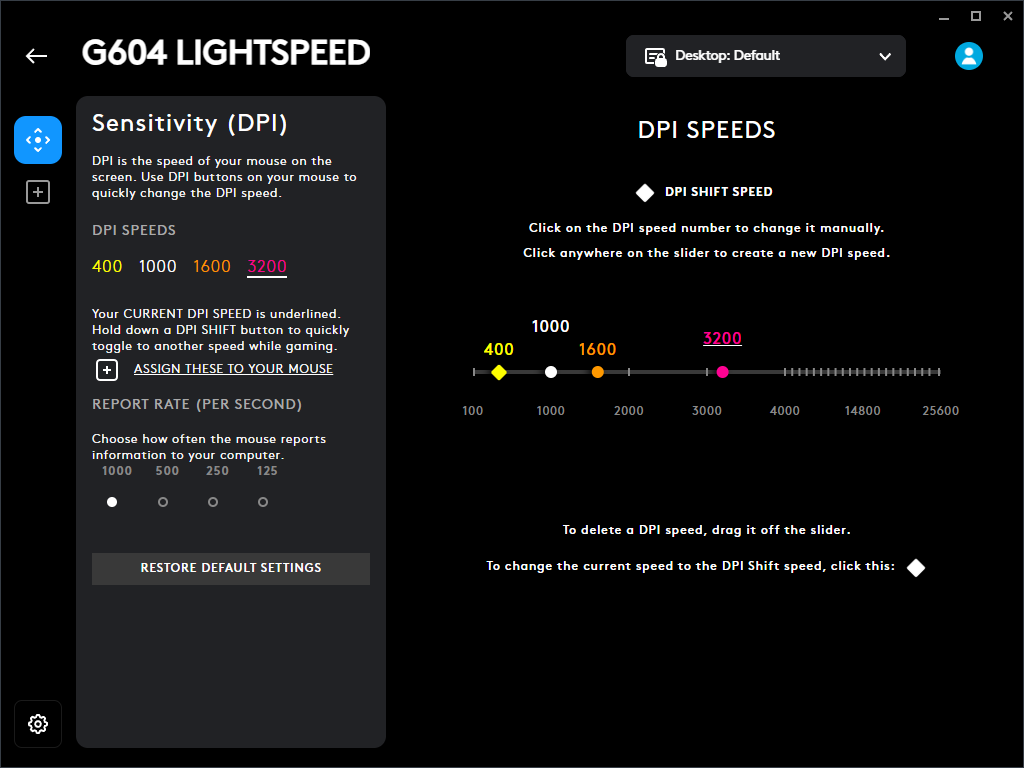
Your first order of business is to open the Mouse settings menu in Windows and find the sensitivity settings (Start > Settings > Devices > Mouse). Then open the software tool to configure your mouse, like Logitech G Hub for my Logitech G604 mouse as pictured here.
I have set my sensitivity to the max level, at 3200 DPI, and I played around with the cursor speed setting in Windows until it felt natural to move around and click on things without missing buttons or menus.
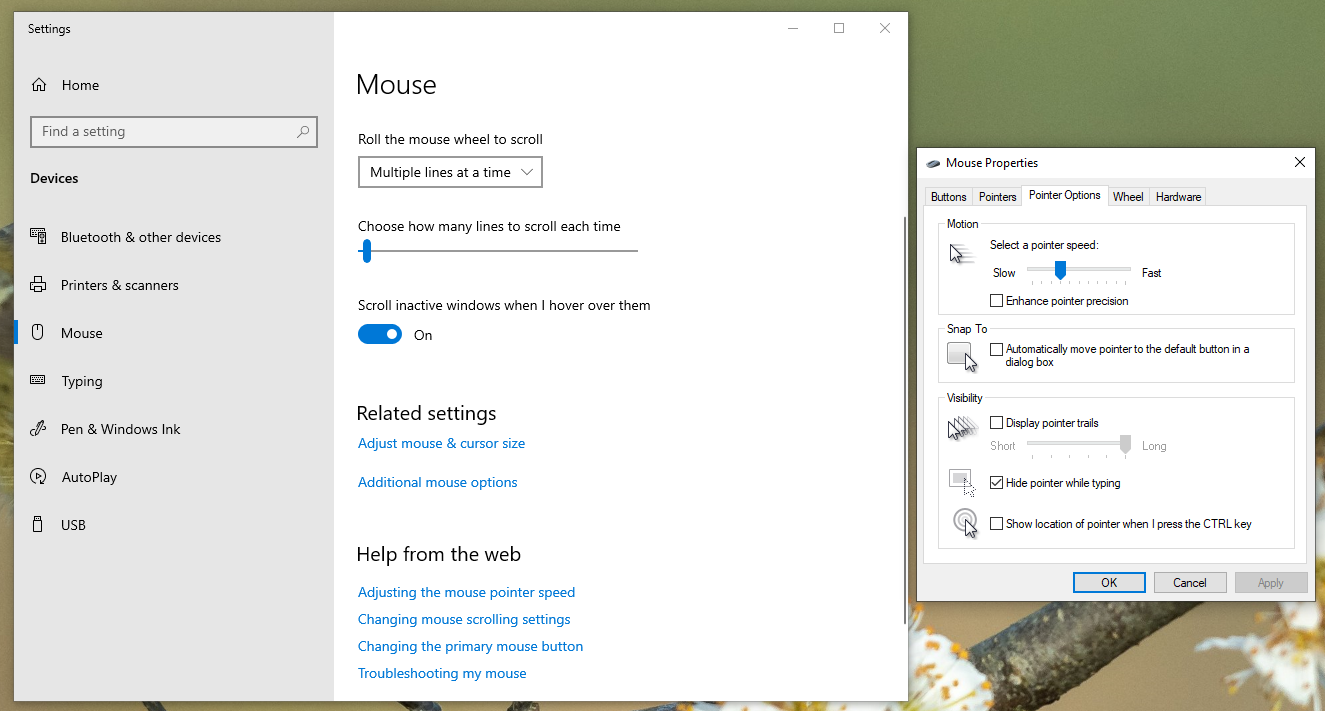
Then, click on the “Additional mouse options” in the Windows menu to open the Mouse Properties window, and click on the “Pointer Options” tab. You will want to toggle the option to “Enhance pointer precision” off by unticking the box and clicking Apply. This will disable mouse acceleration on Windows, leaving you with flat, consistent input.
In games, you will then need to adjust your sensitivity settings lower to compensate for the increased speed of the sensor. The setting we’ve just changed for pointer precision also affects how the mouse works and feels in videogames, so it is worth mousing around to see what feels more natural to you when moving to click buttons in the game's UI.
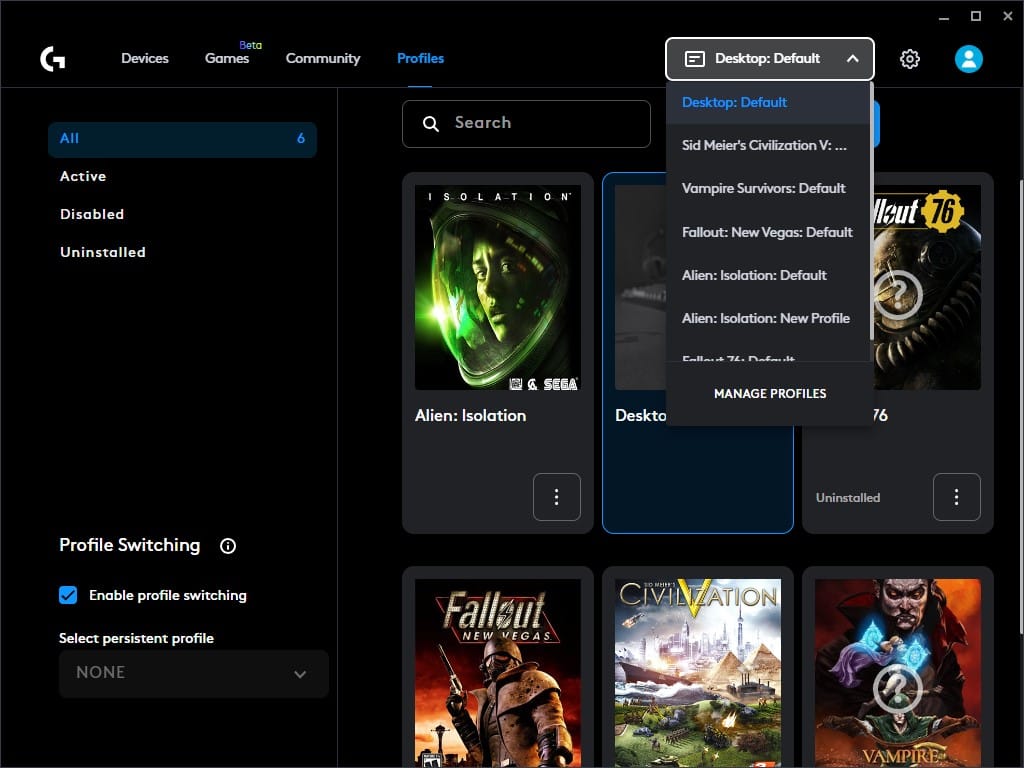
Some mouse driver software, like Logitech G Hub, supports per-app profiles that you can customise, so it is worth looking closer at these individually to have your mouse settings change on the fly when launching a game or specific application.
For more advanced users: Mouse cursor acceleration has come a long, long way since the early 2000s, but Windows offers no way to tweak it. rawaccel is a free and open source tool for Windows users that allows you to play with, and customise, cursor acceleration profiles that are unique to you and your hardware. Youtuber optimum spent a month testing it out, and there may be benefits to using some preset profiles over raw input in certain games. Try it out!
Reassign Buttons for Comfort
On average, mice ship with five buttons to interact with - you have your left and right primary triggers, as well as the middle mouse button. If your mouse is oriented to use by power users or gamers, you will also have two thumb buttons. Gaming mice may also have buttons to shift the sensitivity up and down, and perhaps switch between saved profiles.
For gamers, it’s worthwhile looking at the settings in-game for mouse controls and playing around with them. Many games will bind actions like melee attacks, throwing grenades, and healing to keyboard hotkeys like V, G, and H.
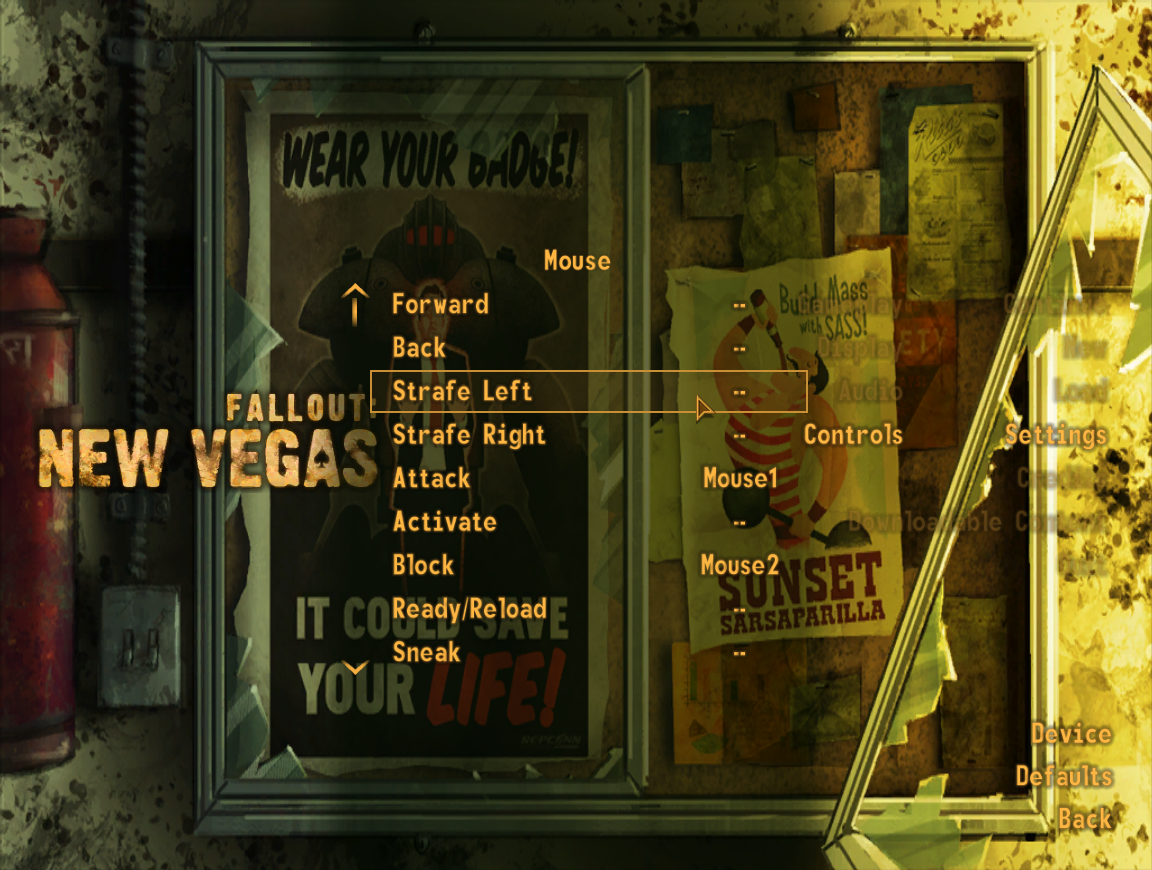
Bind actions that you do frequently to buttons on your mouse instead. This frees up your keyboard hand to move freely between controlling your character to swapping weapons and reloading, while the mouse hand controls actions that require accuracy, like stealth kills and throwing grenades.
Setting up button assignments can also be done with the per-app profiles setting that we saw just a bit earlier in the Logitech G Hub example. If you’re not a gamer, button reassignments might still make sense for your particular use case with your computer.
If you’re using the middle click button to open up links in a new tab in your browser, you might want to remap that to a thumb button instead for comfort. If you don’t need to right-click anything, remap that button to another feature that you do use often. I have reassigned one of my thumb buttons to control music playback with one click, even though hotkeys for it exist on my keyboard.
This advice blends in with the next section because it’s all to do with the ergonomics of using your peripherals for work or play.
Streamlining Things with Custom Macros
Remapping keys is neat, but there’s so much more you can do if you care to experiment. Macros are a game changer for gaming and productivity, and you would do well to tinker with the settings in this area to make your mouse work better and smarter for you.
If you’re after a productivity boost, macros are your gateway to a kind of workflow nirvana. Your mouse software might allow you to set up macro shortcuts and bind them to a mouse button, allowing you to do complex things with a single tap. On my Logitech G640, I have a button macro just to press CTRL + Shift + V to paste in plain text in any application.
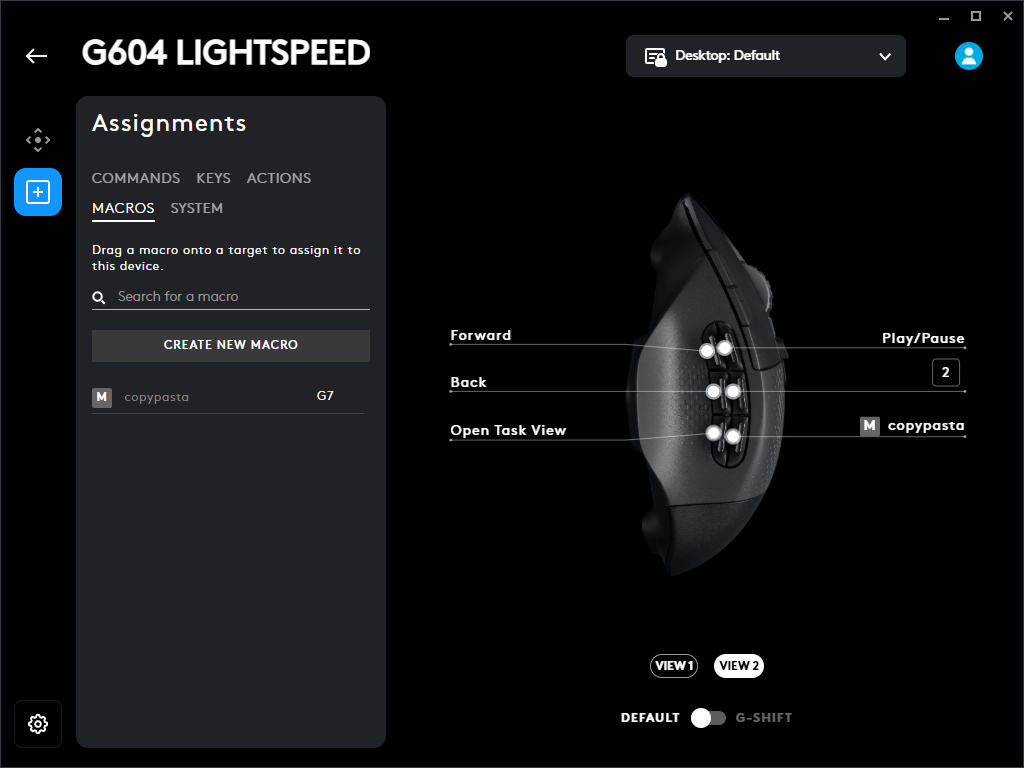
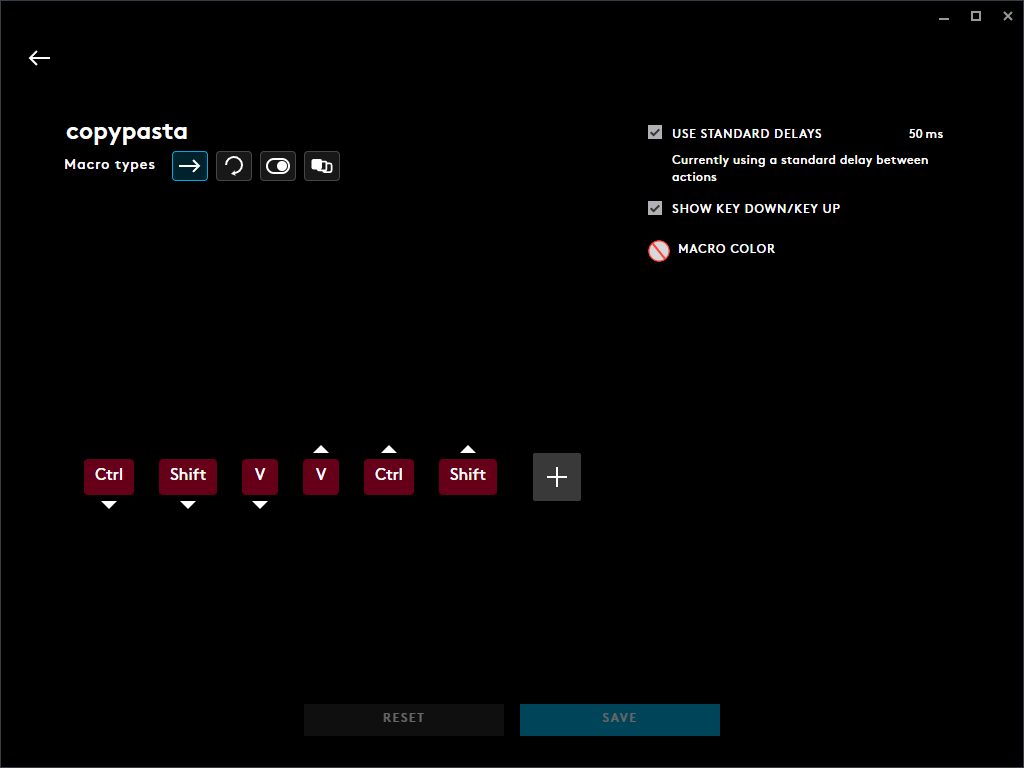
I can do this perfectly well with my keyboard hand, but sometimes my fingers just do not hit the keys in the right order, or my hands are cold and I would prefer to move as little as possible. I have had macros for complex actions in the GIMP editor to perform the same series of edits on images, and I even had macros at one point that also would help edit text or move files to specific folders by loading scripts using Autohotkey.
In games, macros are somewhat frowned upon in certain situations because you can do things faster than a human player could with their bare hands, using well-timed actions that execute with a single button press. You could set up macros to farm items or do specific actions to save time in online fights, like lobbing a grenade and then switching to your primary weapon and reloading.
Take mental (or physical) notes while you are playing and working to figure out what sort of repetitive actions you might want to put into a macro, and use them to tweak the flow of your work or gaming time.
If your mouse software supports different profiles and allows you to flip between them easily, you can even swap between profiles and macros set up for specific tasks and applications, easily extending what powers lie at your fingertips.
Find the mouse that is the perfect fit for you at Wootware, and then let us know what kinds of tweaks you apply to make it feel best in your hand!