
Choosing Your Next Monitor: A Buying Guide
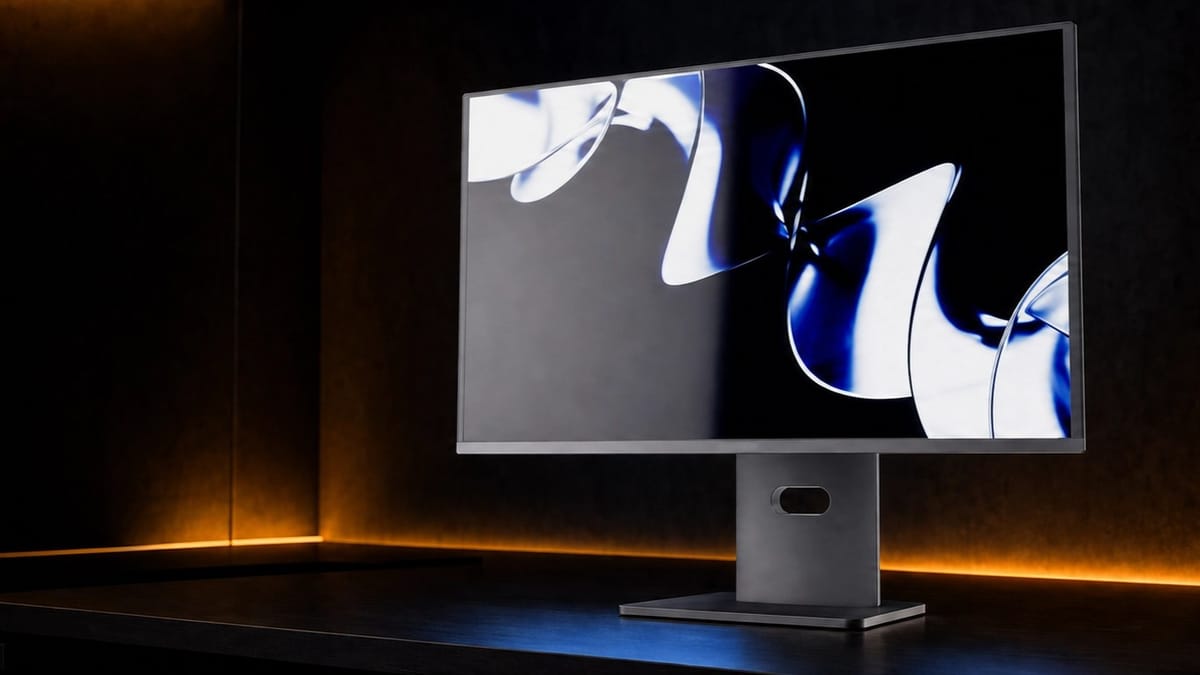
Choosing and buying a monitor for your PC is one of the most important decisions you’ll make when it comes to the look and feel of your machine. It is the thing you most interact with, and the experience of using GUI software depends greatly on the quality of the images being beamed into your eyeballs. But there’s so much more choice than you first imagined before looking at one; how do you make a choice, and which things should you prioritise? That’s what we’ll cover today.
Read our companion article to this one, The Wootware Monitor Buyer's Guide!
First: Look at Your GPU
While it does matter a little bit what sort of GPU you have in the device your monitor is going to connect to, what really matters is how powerful it is. For standard desktop use, pretty much any integrated graphics on the CPU will do just fine for most people, even high-resolution video playback.
It is gaming and high-fidelity graphical applications that will be the limiting factor when filling out your shortlist. We’ll have to do some quick math.
| Resolution | Pixel Count | Megapixel Count | Relative to Full HD |
|---|---|---|---|
| Full HD (1080p) | 1920x1080 | 2.073 | 100% |
| UW-UXGA (Ultrawide) | 2560x1080 | 2.764 | 133% |
| WQHD (1440p) | 2560x1440 | 3.686 | 177% |
| UWQHD (Ultrawide) | 3440x1440 | 4.953 | 238% |
| UHD 4K | 3840x2160 | 8.294 | 300% |
In the table above, you can see the relationship between different resolutions. Full HD is set as the baseline, as it is both the most popular monitor resolution on Steam’s Hardware Survey, and also the least demanding from modern GPUs. We compare monitors using the megapixel counts, which you get by multiplying the number of horizontal pixels with the number of vertical pixels.
Running an Ultrawide 1080p monitor is only 33.33% more pixels, so the work the GPU needs to do is only 33% more resource intensive. Most graphics cards will handle games on a monitor like that with performance close to native 1080p, but you may only have to compromise on the visual settings very slightly to get to your desired framerate.
The jump from one resolution to another does not always have a linear relationship with performance, but it is a good rule of thumb.
UltraHD 4K is 300% more pixels compared to Full HD 1080p. To maintain the same level of performance, your GPU needs to be roughly four times faster to compensate for the extra load. Increasingly, gamers are being encouraged to turn on display scaling features like NVIDIA DLSS and AMD FSR, or enable Adaptive Resolution options to change the game’s render resolution to a lower pixel count in order to regain performance.
The increased load on the GPU for video games slims down your choices a lot. If you are running a mid-range GPU like a GeForce RTX 5060 8GB or Radeon RX 9060 XT 8GB and still want high framerates, your best picks are 1080p or 1440p monitors, giving you flexibility when setting up your games to boost frame rates or enhance visual fidelity.
If your GPU is somewhere near the level of performance of a GeForce RTX 5070 or Radeon RX 9070 GRE, a 4K monitor could be near the top of your list. You can use DLSS or FSR for more demanding games, and native 4K gaming is a really good experience for slower-paced titles.
Second: Do You Have The Desk Space?
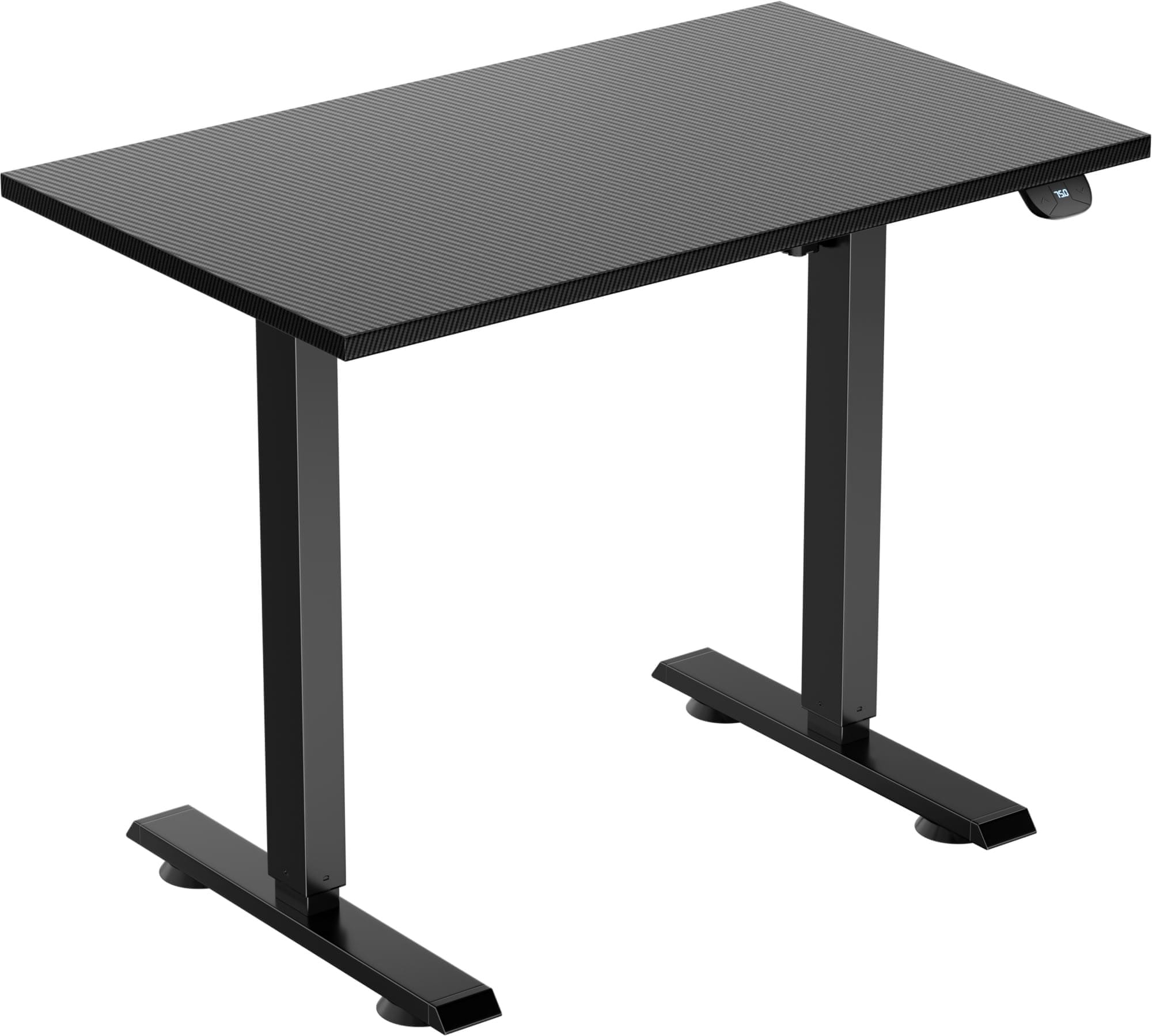
Aside from GPU horsepower, your chosen monitor still has to fit on the desk. Old ergonomic guides recommended that your monitor be placed about 600mm away from your eyes, at head height to reduce eyestrain, but not everyone is going to have deep enough desks to do this.
A rough way to estimate this is to use your outstretched arm while in your preferred seating position at your desk - the tip of your middle finger must touch the display to be at a comfortable distance for reading text.
Because not everyone has the same space to use for their setup, the monitor needs to fit comfortably in it and not overwhelm the space. A large 32” monitor fits nicely for desks that are between 700mm and 1000mm deep, while shorter and smaller desks might only suit a monitor smaller than 25” in diameter.
Ultrawides are another story. Because of their width, they need to be placed further back than you might expect for you to see the entire display without craning your neck. This writer has a 29” ultrawide placed slightly further away because I need to be able to see everything, and as a result my desk needs to be much wider to suit the space.
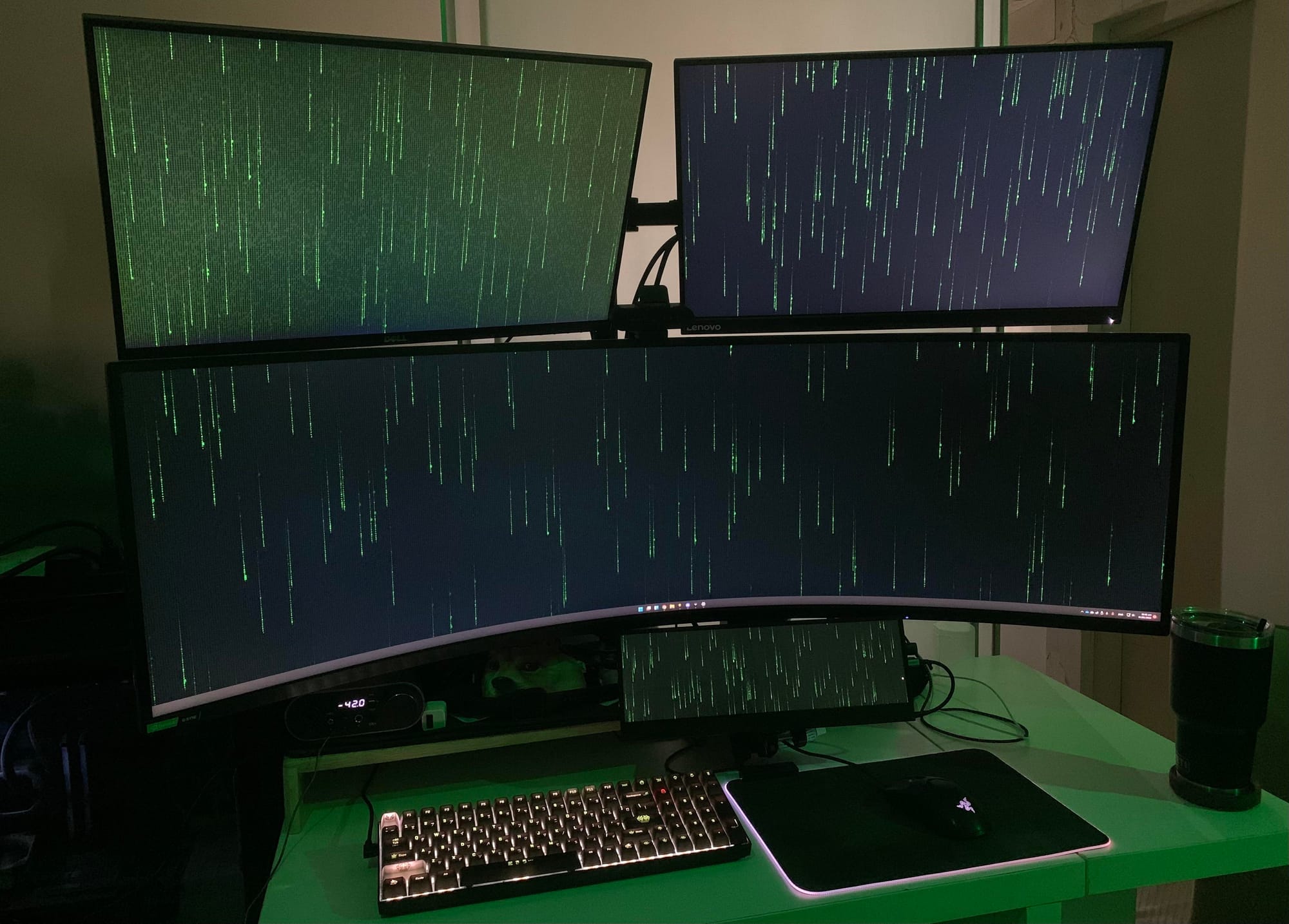
The sweet-spot for most desks is a 27-inch monitor. It fills your field of view nicely and allows for immersive experiences, while it doesn’t require you to sit much further back.
A 34” Ultrawide must be placed even further back for productivity purposes unless it is curved, in which case it might be placed closer to you. You would have to move your head around to see things on the far left and far right of your peripheral vision, but the immersion is unmatched.
Third: Display Scaling
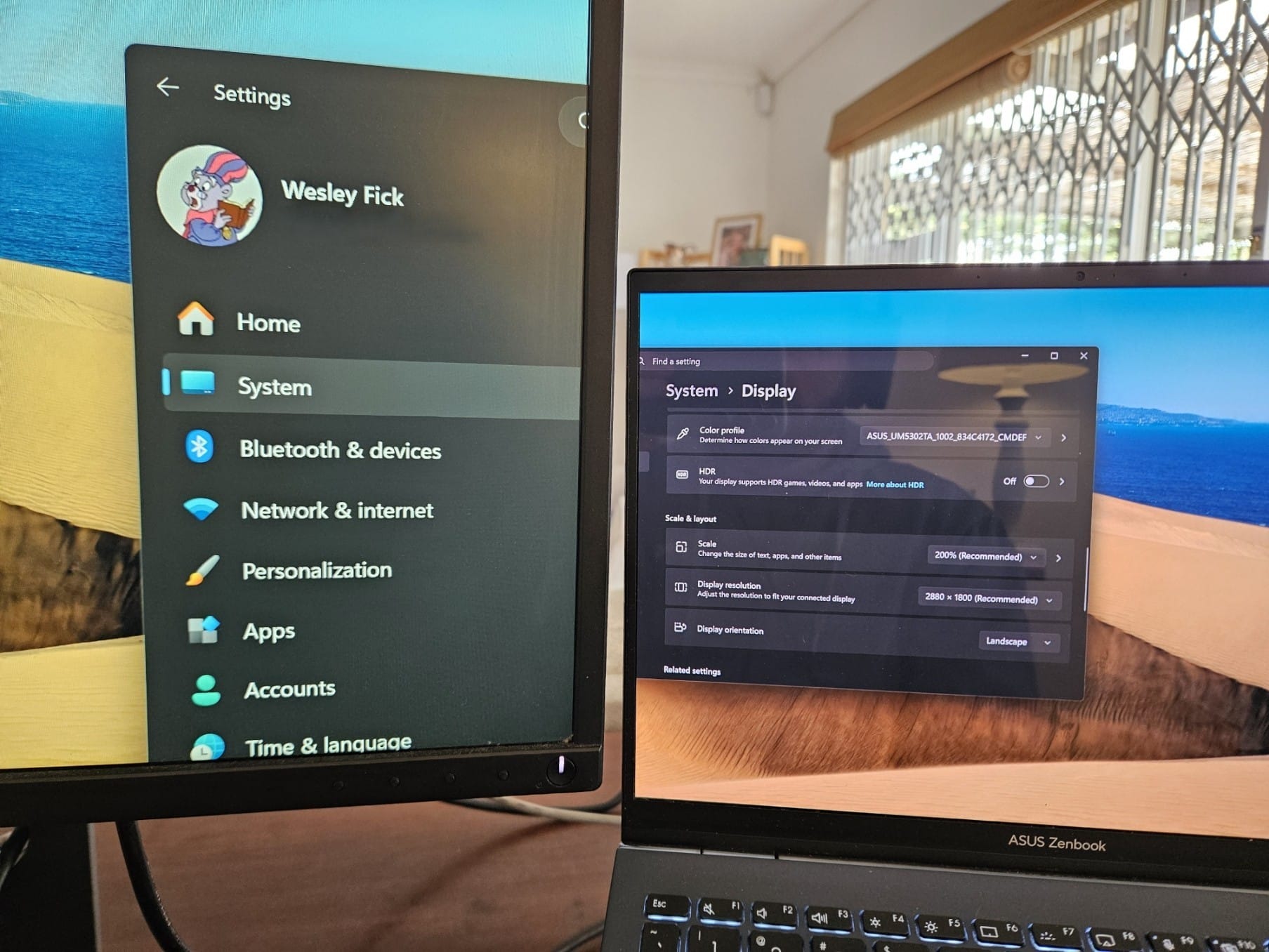
Now that you’ve made your choice based on size and your GPU’s power, you need to make one more decision - scaling. Monitors of different physical sizes will need to scale elements on the screen to fit for legibility. This is achieved by scaling the “display”, the image that is shown on the panel, and stretching or shrinking the dimensions to map to the native pixel count as near to 1:1 as possible.
On a 22” Full HD display, you can use Windows or Linux at 100% display scaling, which maps a 1920x1080 image to a grid of pixels arranged 1920 pixels across and 1080 pixels up/down. This is where the pixels per inch (PPI) figure comes from - 22” Full HD monitors have a fidelity of around 100 pixels per inch, because that’s how many there are, physically, in one square inch if you had to count them by hand.
Showing a 1440p image on a 1080p display will make it look sharper and more detailed, but there will be artifacts because it is not a perfect mapping. The odd scaling ratio produces issues like illegible text, aliasing, and icons and elements with incorrect proportions. This is called downsampling, and it only works for media like videos.
| Resolution | Pixel Count | Diagonal | PPI Count |
|---|---|---|---|
| Full HD (1080p) | 1920x1080 | 22" | 100.13 |
| UW-UXGA (Ultrawide) | 2560x1080 | 29" | 95.81 |
| WQHD (1440p) | 2560x1440 | 27" | 108.79 |
| UHD 4K | 3840x2160 | 27" | 163.18 |
| UHD 4K | 3840x2160 | 32" | 137.68 |
| UWQHD (Ultrawide) | 3440x1440 | 34" | 109.68 |
| 5K | 5120x2880 | 27" | 217.57 |
| 5K | 5120x2880 | 32" | 183.58 |
A 1440p display at 27” is also comfortable enough to use at 100% scaling (except for macOS enjoyers). The Windows UI is clear and legible here, as well as on most Linux distributions. But a 27” 4K display is roughly twice the pixel count of 1440p, and at 100% scaling you’ll find that everything on the screen is twice as small. That’s why you'll need to use 200% scaling to use your monitor comfortably.
This is not the case for monitors larger than 30” because, while they are physically larger, scaling to 150% or 200% on a 32” 4K monitor makes things bigger than they need to be. The virtual pixels end up being larger than those on a 27” 1080p display.
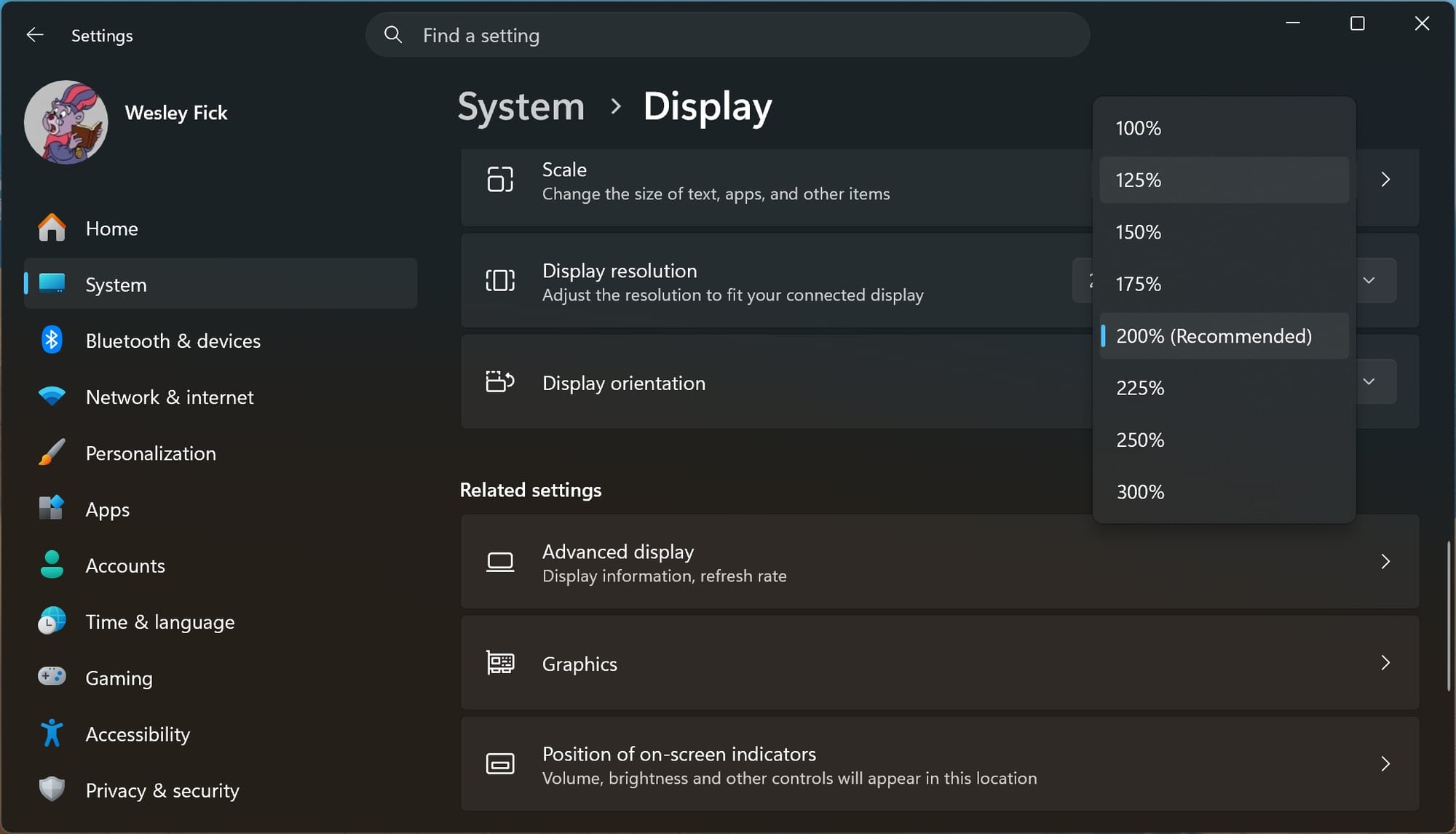
Operating systems like Windows and Linux can scale things using fractions, like 150% and 175%, to get close to the ideal presentation for your content, but fractional scaling may still have errors in text and icons. This is one of the reasons why macOS is so difficult to buy monitors for - if you can’t match the high PPI counts of Apple’s Retina displays, macOS won’t look so hot.
What Are You Using It For?
Many people walk away from a monitor purchase because they aren't sure that what they are buying will suit their needs.
If your usage is mostly for productivity with no, or very little gaming, a high-refresh rate monitor makes sense if you would like that smooth and fast feeling when zipping around your desktop or apps. There is some science that suggests a refresh rate higher than 60Hz contributes to lower levels of fatigue and eye strain.
If your usage is mixed or more intended for gaming, you should prioritise a resolution that your GPU can run while also aiming for a high-refresh rate experience. You will benefit from the improved clarity in motion when fast-paced things are moving across the display.
Pulling it All Together
Now that we’ve gone through the three things on the list, let’s review the following scenario: Our system has a NVIDIA RTX 5070, so it is 4K capable when using DLSS. We have a desk that is roughly 1200 x 600mm, and we’d like to have a high refresh rate experience for a mixed-use load.
A 27” 1440p monitor would be easier to budget for and would still offer refresh rates above 120Hz for fast-paced gaming. Monitors in this space have a starting price of R2500, and are very capable. Our Wootvision lineup has something for everyone and every budget.